How to Apply Styles and Formatting in Excel Using Java
Axyra Sheets is a Java library for reading, writing, and processing Excel files. This guide shows how to format a sales report with fonts, colors, borders, dates, currency, and percentages, and how to change existing formatting without losing other style settings.
Reusable cell styles let you apply the same formatting to individual cells or entire ranges. The example keeps revenue and margins numeric so the report can still calculate totals.
TL;DR
- Build shared
CellStyleobjects for headers, dates, currency, percentages, and totals; apply each style to its range. - Keep values numeric and use
numberFormat()for display. Usecell.style().toBuilder()to preserve existing formatting. - Set column widths and row heights for readability, then save the formatted report as XLSX.
Table of contents
- Apply a reusable Excel cell style in Java
- Format dates, currency, and percentages
- Set widths, heights, and the total row
- Run the complete formatted-report example
- Reuse styles across large Excel reports
- How to preserve existing Excel cell formatting in Java
- Advanced: highlight low margins with conditional formatting
- FAQ
Raw data
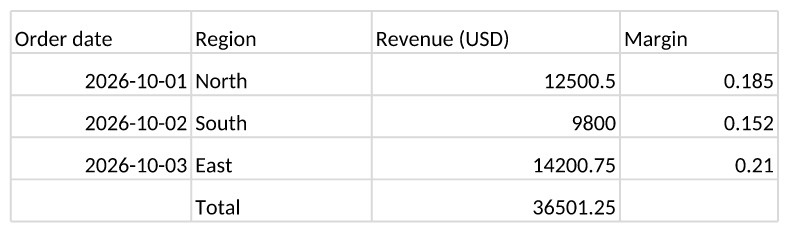
The sales data in a neutral grid. Dates remain readable; revenue and margin show their raw numeric values.
Formatted report
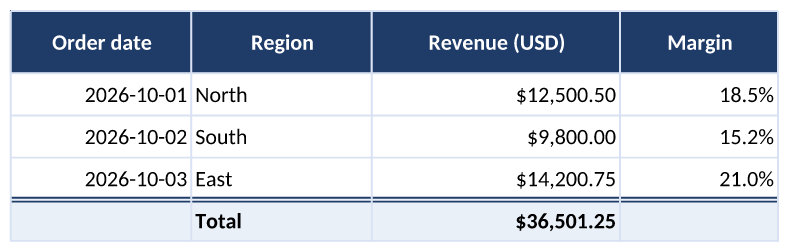
The same data with a styled header, dates, currency, percentages, borders, and a total row. Both previews are rendered by Axyra Sheets.
Apply a reusable Excel cell style in Java
Inside an open workbook, build a header style once and apply it to the header range:
CellStyle header = CellStyle.builder()
        .bold()
        .fontColor(Color.parse("#FFFFFF"))
        .fill(Color.parse("#1F3B68"))
        .horizontalAlign(HAlign.CENTER)
        .build();
sheet.range("A1:D1").setStyle(header);
This sets a bold white font on a dark blue background with centered text. The full report also adds a shared font, borders, wrapping, and row heights.
Format dates, currency, and percentages
Create a shared body style, then derive styles for each column. The variants keep the body’s font and borders while changing how values appear:
CellStyle body = CellStyle.builder()
        .fontName("Calibri").fontSize(11)
        .allBorders(BorderStyle.THIN, Color.parse("#D9E2F3"))
        .build();
CellStyle date = body.toBuilder().numberFormat("yyyy-mm-dd").build();
CellStyle money = body.toBuilder().numberFormat("\"$\"#,##0.00")
        .horizontalAlign(HAlign.RIGHT).build();
CellStyle percent = body.toBuilder().numberFormat("0.0%")
        .horizontalAlign(HAlign.RIGHT).build();
sheet.range("A2:A4").setStyle(date);
sheet.range("C2:C4").setStyle(money);
sheet.range("D2:D4").setStyle(percent);
Write 12500.5 as a number to display $12,500.50, and write 0.185 to display 18.5%. Use cell.setDate(LocalDate) for dates. Number formats affect display; the stored values remain available for SUM formulas and other calculations.
The full example extends the currency format with a second section for red parentheses on negative amounts. Positive values display the same way as the simpler format above; see the source for that optional format code.
Set widths, heights, and the total row
After applying formats, use sheet.setRowHeight(0, 32) for a taller header and sheet.setColumnWidth(2, 22) for the revenue column. For variable-length data, call autoFitColumn(columnIndex) after writing and formatting. The complete example adds a bold total row with a pale fill and double top border, and keeps SUM(C2:C4) as a formula.
Run the complete formatted-report example
Use Java 17 or later and Maven. The full source creates the data, applies the styles, and saves formatted-sales.xlsx:
Complete runnable Java example: FormatExcelReport.java
git clone https://github.com/keikai/axyra-sheets-examples.git
cd axyra-sheets-examples/java/guide-projects/format-cells
mvn compile exec:java -Dexec.mainClass=FormatExcelReport
Open formatted-sales.xlsx. The first revenue displays as $12,500.50, the first margin as 18.5%, and the total as $36,501.25.
For an existing application, follow Installation. Without an installed license, the example runs in evaluation mode; see Licensing and evaluation.
Reuse styles across large Excel reports
Build a small set of styles for report roles—body, header, date, currency, percentage, and total—outside your row loops. Apply each shared style to its range. For 10,000 revenue rows, reuse money with sheet.range("C2:C10001").setStyle(money), rather than constructing thousands of identical style objects.
CellStyle is immutable. Derive a variation once with toBuilder() when many cells need it, and reuse that variation too. A full range style suits cells that should share the same complete formatting.
How to preserve existing Excel cell formatting in Java
When updating an existing report, customize a formatting property while retaining the cell’s other styles. For example, highlight the third row while keeping its dates, currency, percentages, and borders:
for (int col = 0; col < 4; col++) {
    Cell cell = sheet.cell(2, col);
    cell.setStyle(cell.style().toBuilder()
            .fill(Color.parse("#F2F6FC")).build());
}
Starting from each cell’s current style preserves its column-specific number format. setStyle(...) applies a complete style rather than merging individual properties; using toBuilder() keeps the properties you want to retain. If you only need to populate a designed report, setValue(...) and setValues(...) retain existing styles.
Advanced: highlight low margins with conditional formatting
Use a value-based rule when a highlight should follow the report data. This rule flags margins below 18% while keeping the percentage display:
sheet.range("D2:D4").addConditionalFormat(ConditionalFormat.builder()
        .cellIs("lessThan", "0.18")
        .fontColor(Color.parse("#9C0006")).bold()
        .priority(1).build());
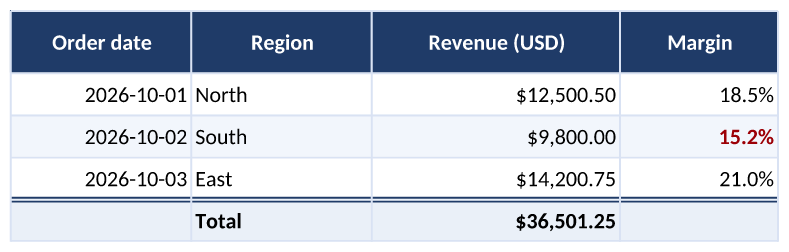
South’s 15.2% margin appears in bold red text; North’s 18.5% and East’s 21.0% retain their normal display.
The threshold is 0.18 because percentages are stored as fractions. Run mvn exec:java -Dexec.mainClass=FormatExistingReport after FormatExcelReport to save formatted-sales-highlighted.xlsx.
Complete existing-report and conditional-formatting example
FAQ
Can I apply the same style to a whole range?
Yes. Build one CellStyle and apply it with range.setStyle(style). Use separate styles for columns with different formats, such as dates and percentages.
Format your own Excel reports with Java
Adapt the runnable sales report example to your data with shared styles, number formats, and layout settings. Explore the style APIs to customize your reports.